This is usually because you have security software/settings preventing Elevate from starting the external dispatcher software. You can demonstrate this by starting the Windows Task Manager—if you see one or more copies of Elevate running, this is the cause. To fix this problem:
First, shut down any Elevate.exe instances using Task Manager’s End Task option.
Then adjust your security software to trust DispatchY.exe and DispatchZ.exe, which are installed alongside Elevate.exe, typically in C:\Program Files (x86)\Elevate 9. Below is an example procedure using Microsoft Windows Defender on Windows 11. Other security software will have similar steps.
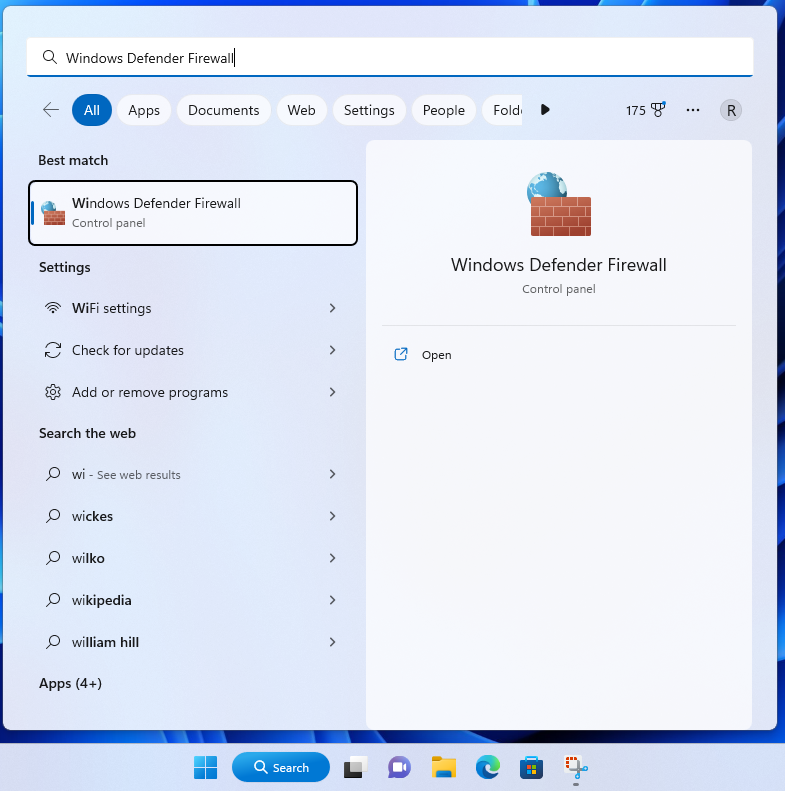
1. Use the search option to find and start Windows Defender.
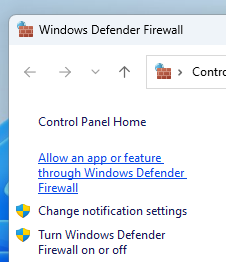
2. Within Windows Defender, select Allow an app or feature through Windows Defender Firewall.
3. Click on Change settings, then click Allow another app...


4. Navigate to where Elevate is installed, usually C:\Program Files (x86)\Elevate 9.
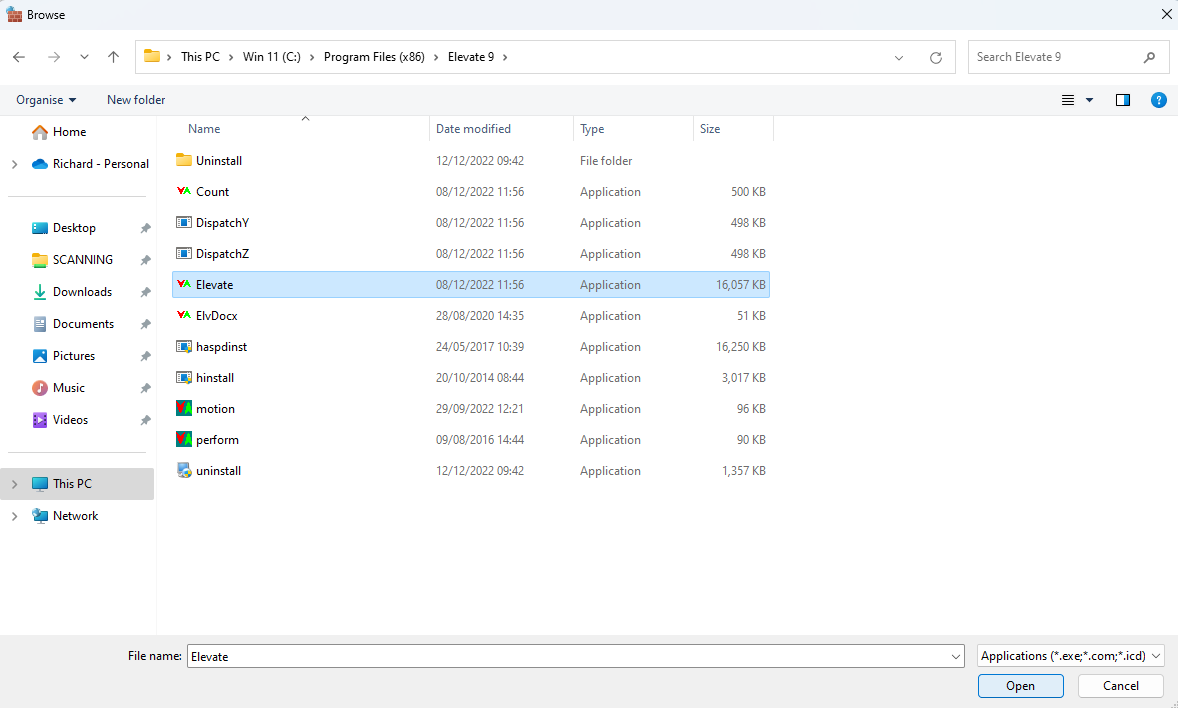
5. One at a time, select Elevate.exe, DispatchY.exe, and DispatchZ.exe.
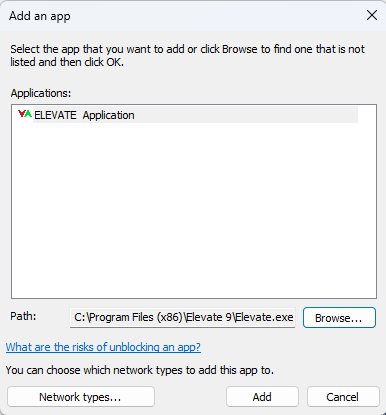
6. Click Add, and tick both Public and Private checkboxes.
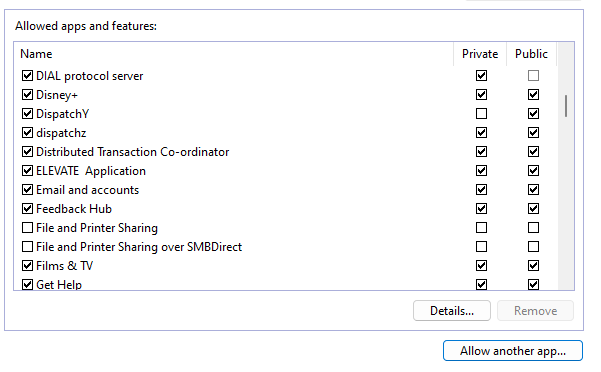
Elevate should now start. If your IT department has concerns, please note that Peters Research digitally signs DispatchY.exe and DispatchZ.exe, so they should be trusted if you already trust Elevate.exe.
Was this article helpful?
That’s Great!
Thank you for your feedback
Sorry! We couldn't be helpful
Thank you for your feedback
Feedback sent
We appreciate your effort and will try to fix the article