This fix will only work if you have installed Elevate 9.3 or later. If you have an earlier version, please upgrade.
Make sure you are logged onto your computer with administrative rights.
Method 1
If this Method does not work, switch to Method 2, lower down this page.
Close Elevate and remove the HASP key.
Restart Elevate, and the welcome screen will be displayed. Click on the button highlighted below.
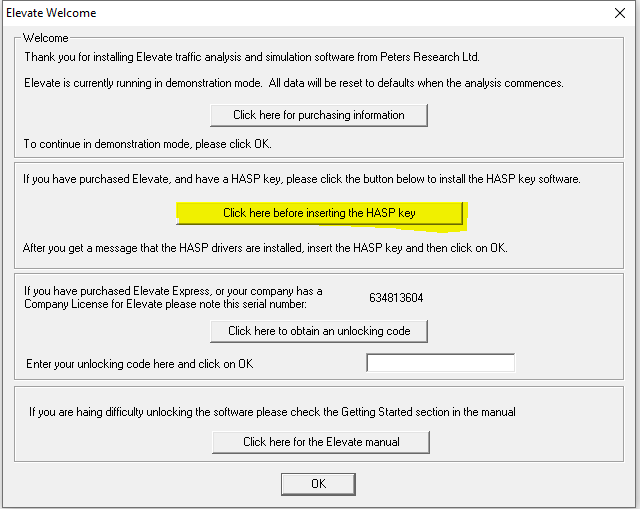
Typically, a security prompt will be displayed.
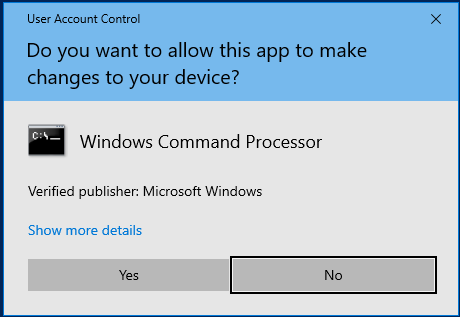
Answer Yes to this and all subsequent prompts like this.
The Sentinel software will run. When you see the message:
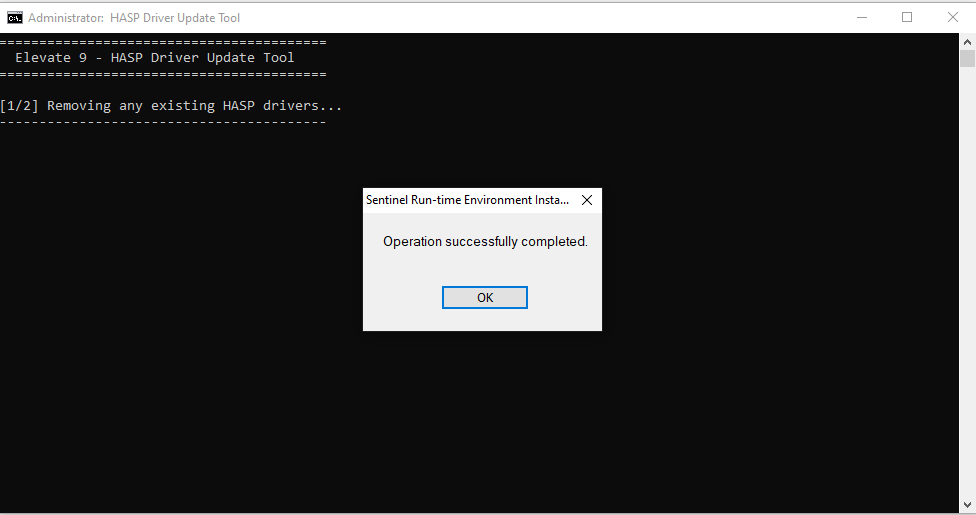
The old drivers have now been removed.
Click on OK.
The Sentinel software will run again to install the latest drivers. When you see the message:
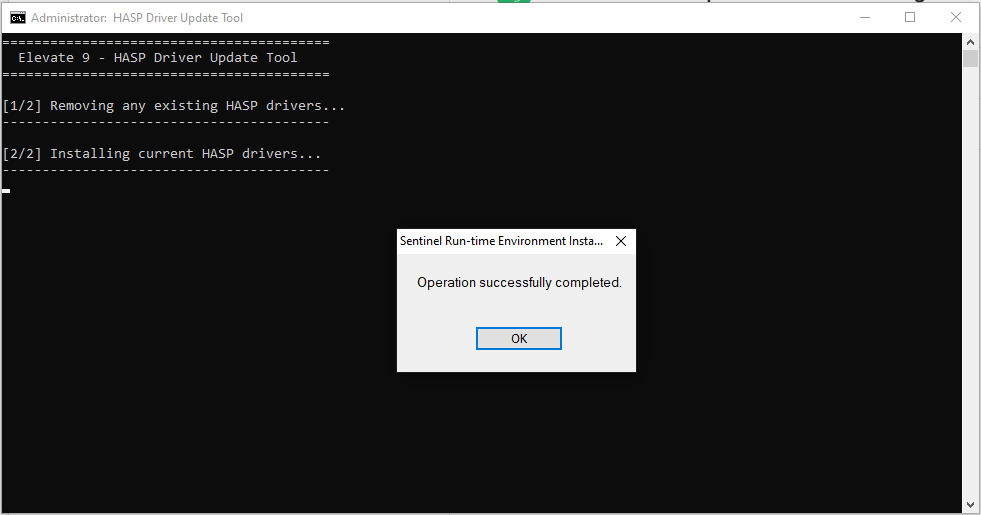
The new drivers will have been installed.
Start Elevate.
Now re-insert the HASP key.
Wait a few moments, and then click on OK. You should get a message that Elevate is unlocked.
Method 2
If Method 1 does not work, Windows Security is likely blocking the script that removes the existing HASP drivers and installs the new ones.
In this case, navigate to the directory where Elevate is installed, typically
C:\Program Files (x86)\Elevate 9
Find the file, update_drivers.bat, right-click on this and select Run as administrator:
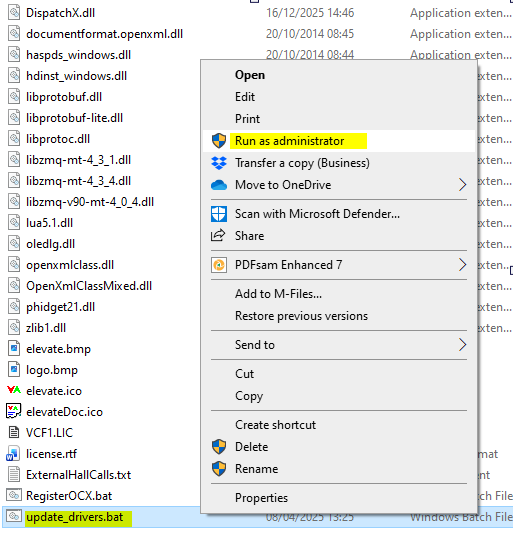
You may be prompted to enter an administrative password to proceed and/or to confirm allowing the app to make changes to your device.
The Sentinel software will run. When you see the message:
The old drivers have now been removed.
Click on OK.
The Sentinel software will run again to install the latest drivers. When you see the message:
The new drivers will have been installed.
Start Elevate.
Now re-insert the HASP key.
Wait a few moments, and then click on OK. You should get a message that Elevate is unlocked.
In some cases, a reboot is required after removing the old drivers and before installing the new ones. If you like, you can reboot your computer and try Method 2 again. Otherwise, please contact technical support.
Was this article helpful?
That’s Great!
Thank you for your feedback
Sorry! We couldn't be helpful
Thank you for your feedback
Feedback sent
We appreciate your effort and will try to fix the article