We recommend that you read this manual and try out the features discussed before using Elevate on actual projects. Advanced mode sections can be skipped if you are only using the basic functions of Elevate.
This guide assumes that you are familiar with the version of Windows you are using. If you are not, please refer to Windows documentation and help systems before using Elevate.
You can start Elevate in several ways:
- Press Start, then select Programs, Elevate
- Double click on the Elevate icon on the desktop
- Double click on any Elevate document
What are the DispatchX.exe, DispatchY.exe, etc. processes that start up when I run Elevate?
These are dispatcher applications which can be substituted by developers writing their own dispatchers. These are completely separate programmes which send/receive all the necessary data that a dispatcher needs to work with either a simulation or the "real world". You can read more about our work implementing a global dispatcher interface here.
Elevate files
Elevate documents have an .elvx extension. When Elevate has completed an analysis or simulation, it generates a corresponding .elvr file which contains the results.
Elevate files are backwards and forwards compatible from Elevate 8 onwards. Legacy Elevate 7 .elv files can be opened in more recent versions of Elevate by changing the file name filter in the File Open dialogue box from Elevate Files (*.elvx) to All Files (*.*).
The .elvx file uses XML, so with basic software skills it is possible to modify these files programmatically. The .elvr file is a text file.
Commands
Commands can be accessed from the menu system in the conventional manner using the mouse. Alternatively, shortcut keyboard commands can be used, e.g. press Alt plus F to select file menu, then P to select print (the underlined letter denotes the shortcut key).
Some frequently used commands can also be accessed from the Toolbar. A description of each button’s function is displayed when the mouse pointer is placed on the button (without clicking). The Toolbar can be dragged to a new position if required (point to a blank portion of the Toolbar, click and drag).
Choosing your own default data
Each time you start a new Elevate document, a standard set of default data is loaded. To create your own default data:
- Start a new Elevate document
- Make any changes you want (e.g. U.S. units instead of metric, lists of standard elevator capacities, number of lines per page for the print out)
- Save the file as default.elvx in the directory in which Elevate is installed (normally C:\Program Files(x86)\Elevate 9)
This data will now be loaded each time you start a new document. If you delete default.elvx, the programme will revert to using Elevate’s standard defaults.
Depending on your security settings, Windows might not allow you to save default.elvx directly into the directory in which Elevate is installed. In this instance, save default.elvx onto the desktop, and then copy the file into C:\Program Files(x86)\Elevate 9. You might need an administrator's password for this.
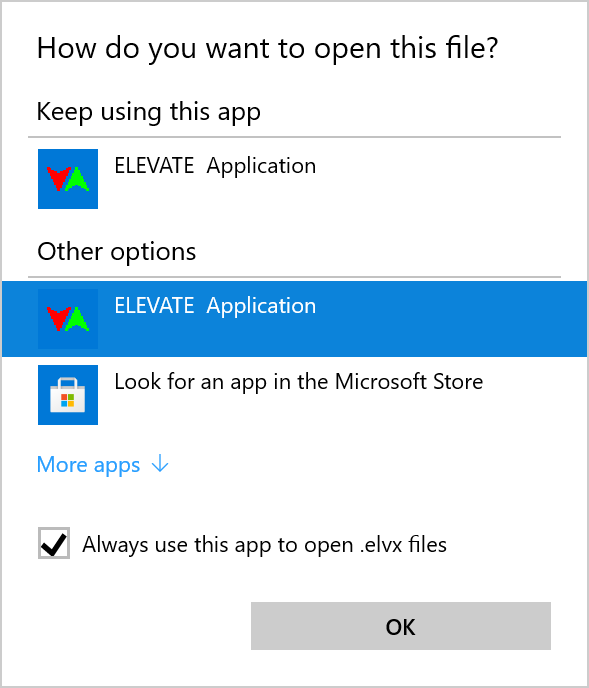
I have both Elevate 8 and Elevate 9 installed on my computer. When I double click on an Elevate file the wrong version starts. How do I change this?
- Right click on the Elevate file and select Open with, and then Choose another app.
- Under Other options, click on Elevate Application and tick Always use this app to open .elvx files
- Click OK
If you cannot see Elevate Application under Other options, scroll down and you will find an option to Look for another app on this PC. Select elevate.exe in the folder where it is installed on your machine, normally C:\Program Files (x86)\Elevate 8 or C:\Program Files (x86)\Elevate 9.
Was this article helpful?
That’s Great!
Thank you for your feedback
Sorry! We couldn't be helpful
Thank you for your feedback
Feedback sent
We appreciate your effort and will try to fix the article