Count is an application to assist passenger traffic surveys. It replaces traditional clipboards and forms for lobby and in-car surveys. The observer who controls the software logs traffic. Select Survey > Start from the Count menu.
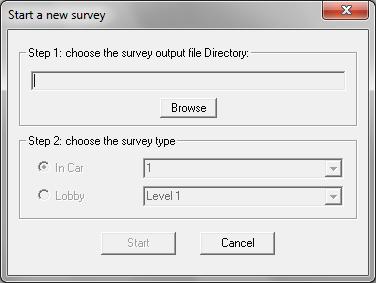
First you must choose a survey output file directory.
Then choose if you are doing an in-car or lobby survey. Select the car number or name of the Lobby level. The names of levels are as defined in Building Data when you start Count.
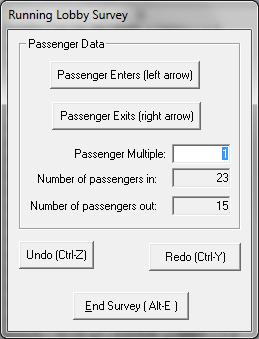
For a lobby survey, select Passenger Enters each time a passenger enters a car. Select Passenger Exits each time a passenger exits the car.
If there is a large load (e.g. hospital patient in wheelchair with carer), you can treat them as a single large passenger using the Passenger Multiple—e.g., set to 2.5 if the load is the equivalent of 2.5 regular passengers. Alternatively, use the parameter as a code: 1 for a single passenger, 2 for a wheelchair and carer, 3 for a bed and porter, etc.
NOTE: If large queues form in the lobby and do not clear quickly (e.g., within 5 minutes), the measured traffic entering/exiting the car may underestimate the peak arrival rate (usually measured over 5-minute periods). In such cases, it is more representative (but more difficult) to log passengers joining the queue instead.
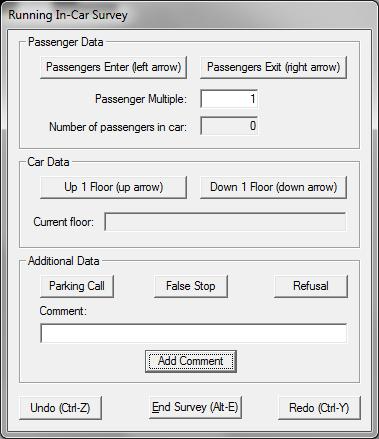
The in-car survey requires the observer to be in the elevator. Passenger entry/exit is recorded the same as in the Lobby Survey.
The current floor of the car is recorded using the Up 1 floor and Down 1 floor buttons in Car Data. The level names are defined in Building Data when starting Count.
There are individual buttons to record:
Parking Call
When the elevator moves to a floor without a call and the doors do not open.
False Stop
When the elevator answers a call, the doors open, but no passenger enters or exits.
Refusal
When the elevator answers a call, but the passenger does not load due to the car being full.
Free-form comments can also be added to the log using the Add Comment button.
Was this article helpful?
That’s Great!
Thank you for your feedback
Sorry! We couldn't be helpful
Thank you for your feedback
Feedback sent
We appreciate your effort and will try to fix the article