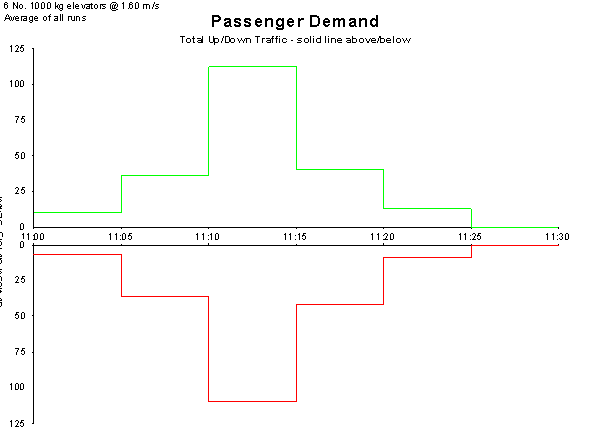
Passenger Demand plots the traffic generated as a result of your inputs in Building Data and Passenger Data. This graph uses the classical format, with up traffic shown above the line and down traffic below the line. Up traffic includes "up interfloor" trips, and down traffic includes "down interfloor" trips.
Traffic is shown in two formats:
- Y1 axis: Persons per five minutes
- Y2 axis: Percentage of total population per five minutes
The X axis represents time in 5-minute intervals. If you have not entered population data in the Building Data, only the Y1 axis will be plotted.
You can view the graph for:
- Any individual run
- The average of all runs
Example graph for all levels:
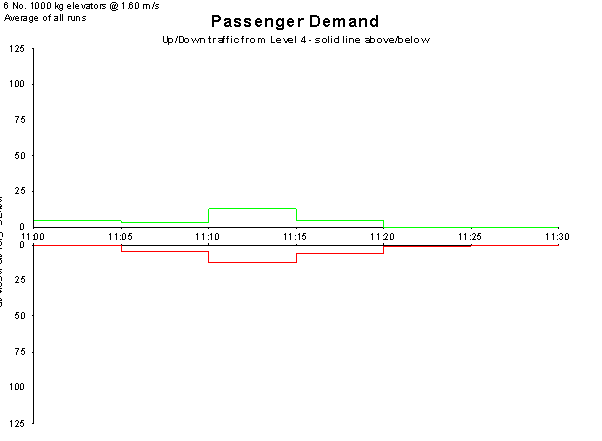
You can also view this graph for a single floor. For example, traffic from Level 4 is shown as:
- Up traffic (upper axis)
- Down traffic (lower axis)
Example graph for Level 4:
Frequently Asked Question
The percentage peak is calculated based on the total population entered in Building Data before any absenteeism is applied.
For example:
- If the template specifies a 10% peak and the total population is 1000, then with 0% absenteeism you will see a peak of 100 persons per five minutes (10%).
- If absenteeism is set to 10%, the peak becomes 90 persons per five minutes (9%).
Tip: To maintain the percentage peak as defined in the template, reduce the population instead of using the absenteeism feature.
Additionally, if population is assigned to entrance levels, Elevate will adjust the demand accordingly—assuming these individuals do not need elevators for ingress/egress, only for interfloor movement. This can also reduce the observed peak in the demand graph.
Was this article helpful?
That’s Great!
Thank you for your feedback
Sorry! We couldn't be helpful
Thank you for your feedback
Feedback sent
We appreciate your effort and will try to fix the article